
Every meeting you are invited to can be added automatically to your Outlook calendar, so you no longer have to add each meeting by hand.
Set up Outlook synchronization
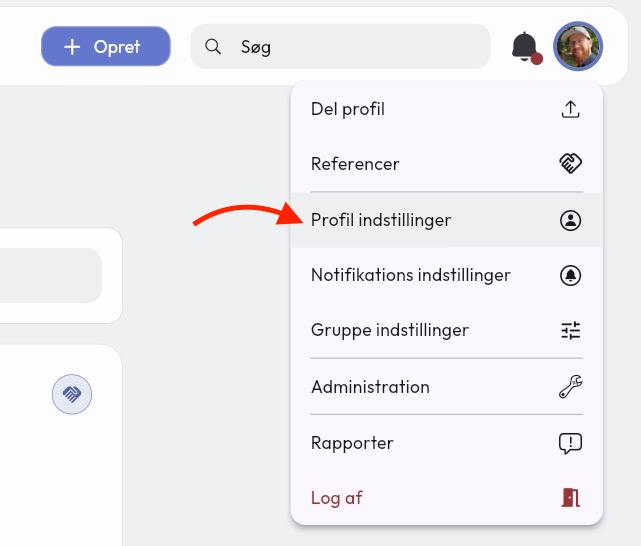
Go to profile settings by clicking your profile picture in the top right corner.
At the top of the settings you will find Calendar synchronization
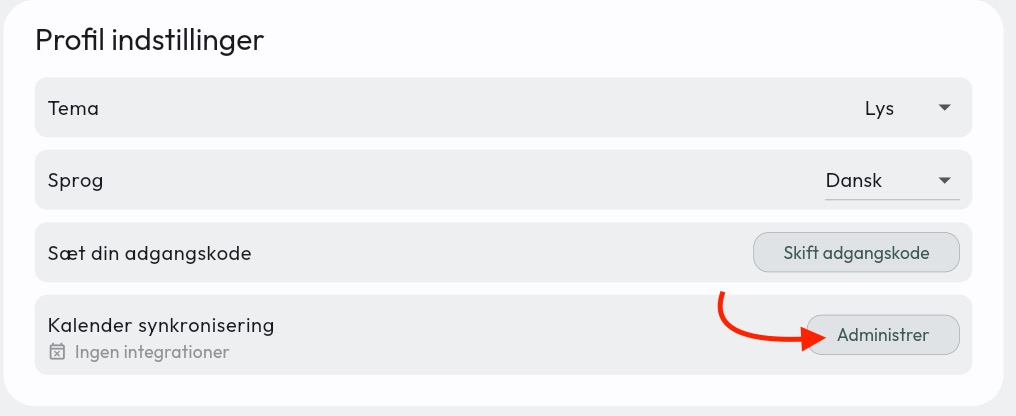
- Click Manage and then Add Outlook
- You will be asked to sign in with your Outlook account.
- After signing in, you will see Your calendar is now connected on the screen
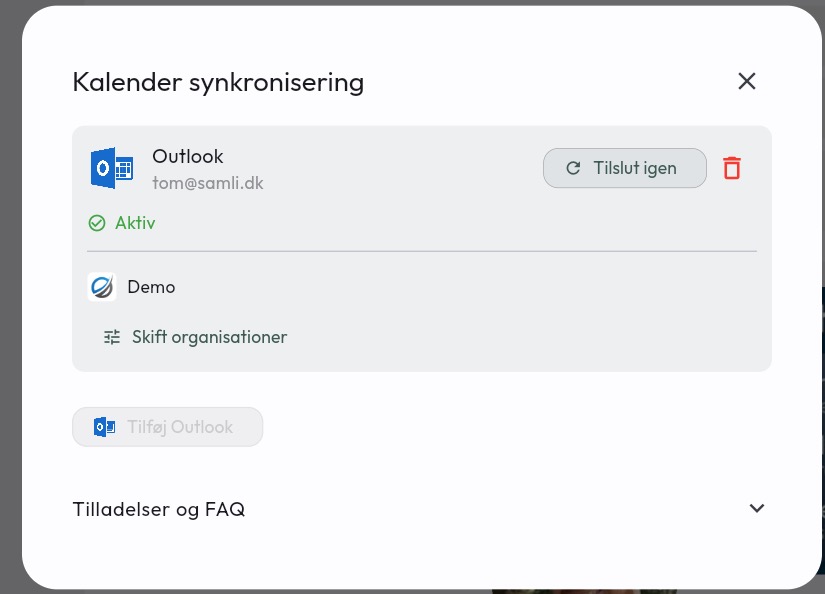
- Back in the app you can see that the synchronization is active.
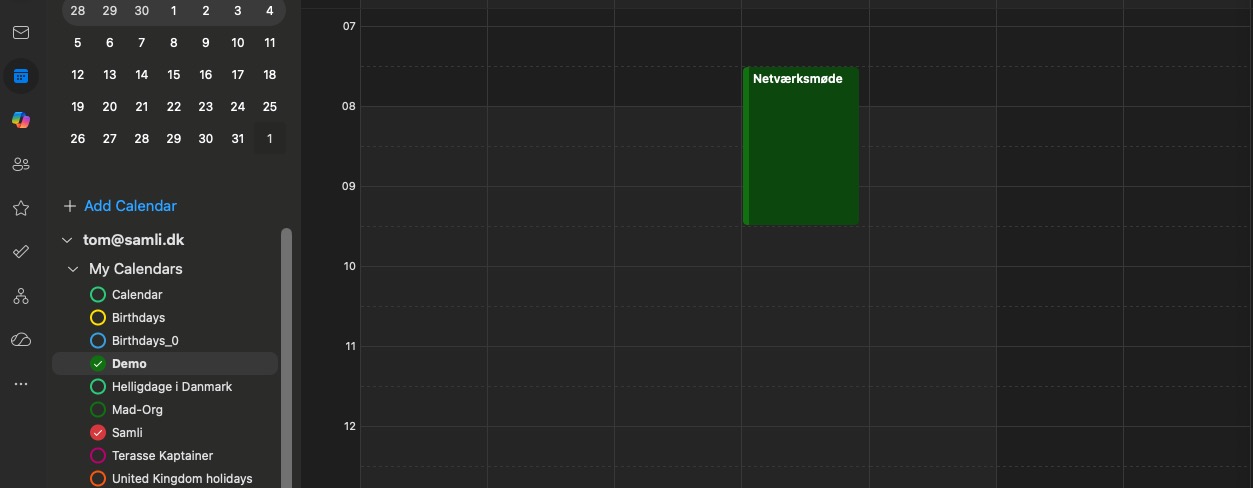
And you can now open your Outlook calendar and see that a new calendar has appeared
Multiple apps (organizations)
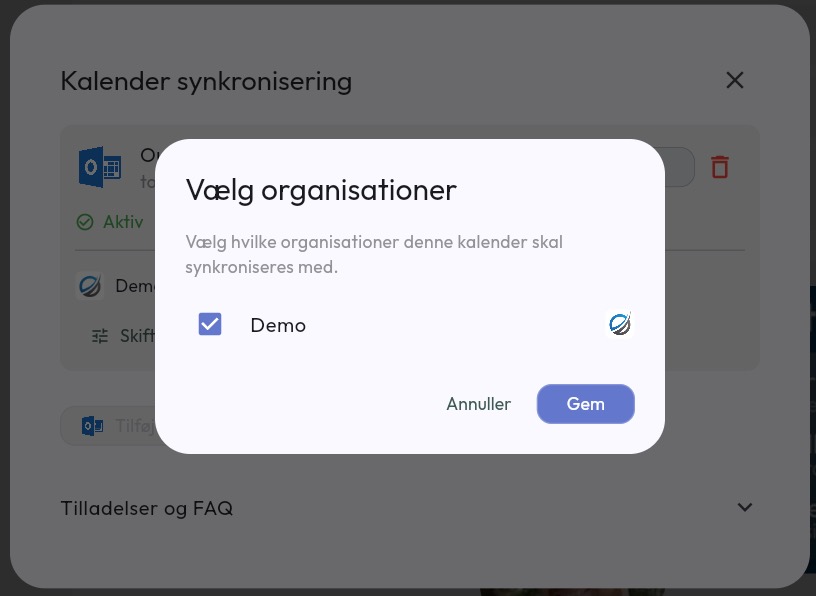
If you are a member of several organizations, you can show meetings from all of them with the same synchronization. Simply go into Calendar synchronization again, click Switch organizations and select the organizations you want to synchronize.
Each organization gets its own calendar color in your Outlook calendar.
Have questions about calendar synchronization? Contact us — we’re happy to help!