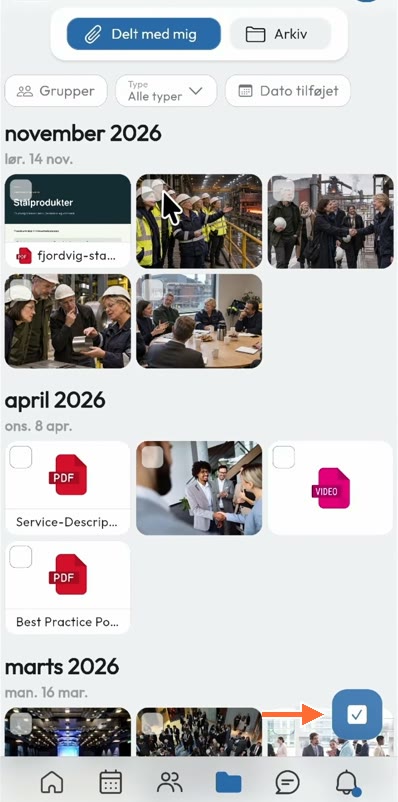
Open Files → Shared with me to find files, photos and videos shared with you in the feed. As an administrator, you can save selected files in folders under Archive.
The video shows how to collect a PDF and four photos from a visit to FjordStålværk. The video and screenshots use the Danish interface, so the steps below include the Danish labels.
1. Find content shared with you
Open Filer (Files) and select Delt med mig (Shared with me). The timeline shows content shared with you. Use Søg (Search) to find something specific, or filter by Grupper (Groups), file type or Dato tilføjet (Date added).
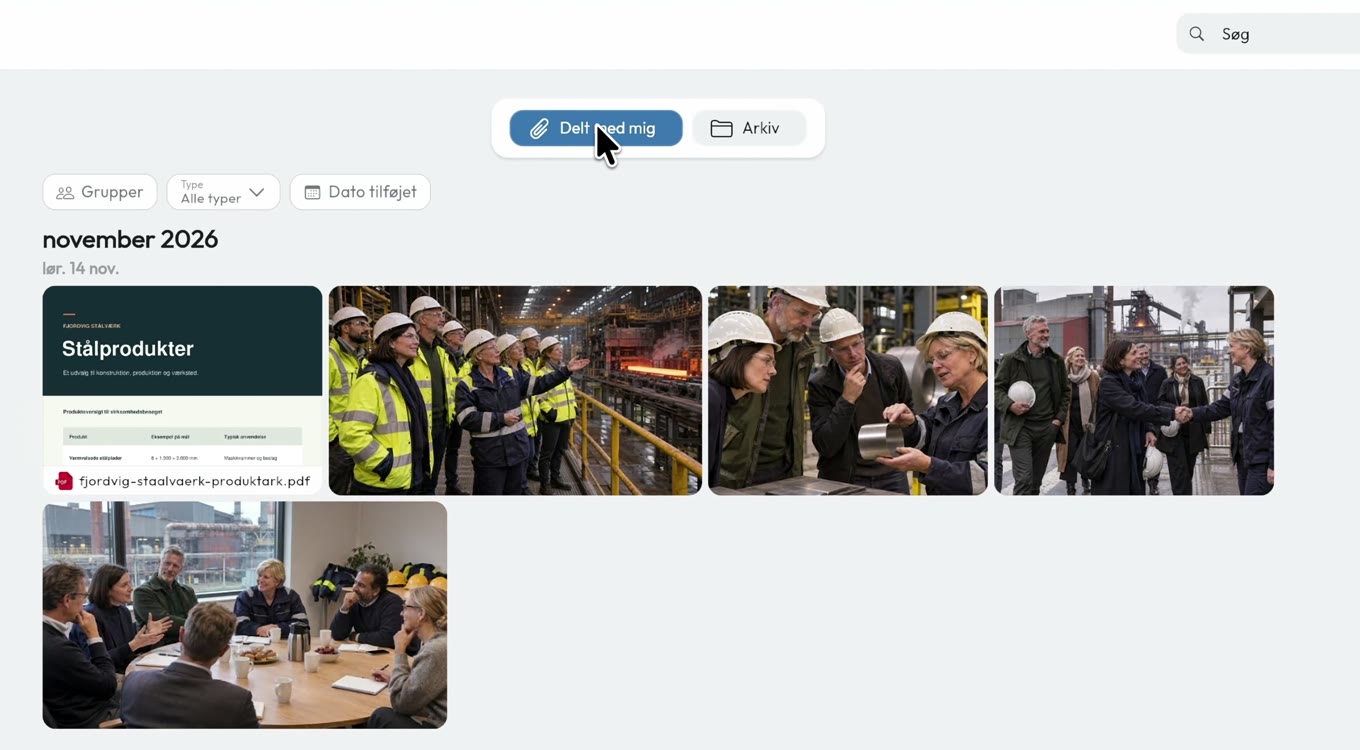
2. Select what you want to archive
As an administrator, hover over a file or photo and tick the checkbox in the corner. Select the files that belong together, then click Gem i arkiv (Save to archive). The number on the button shows how many files you selected.
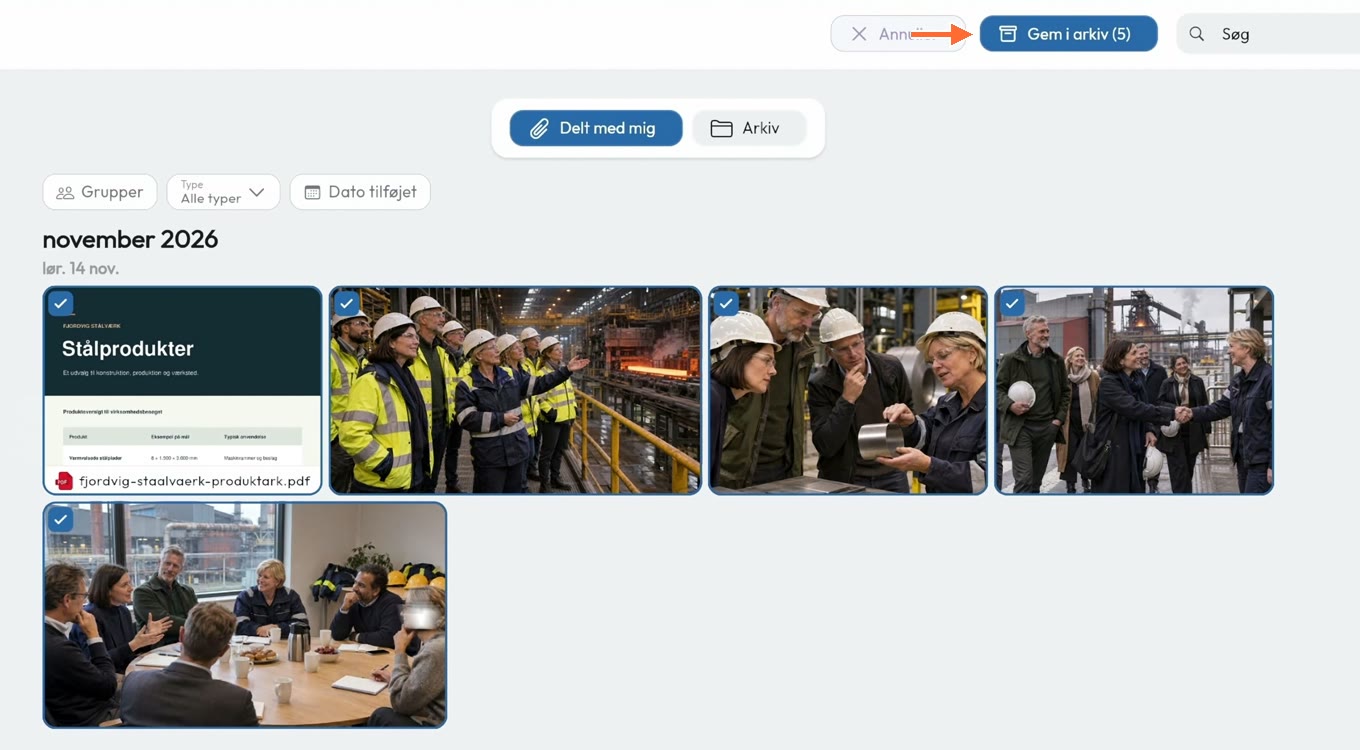
3. Choose an archive and folder
Click Vælg gruppe (Choose group) if the material belongs in a specific group’s archive. The video uses the shared archive, labelled Alle i Demo (Everyone in Demo).
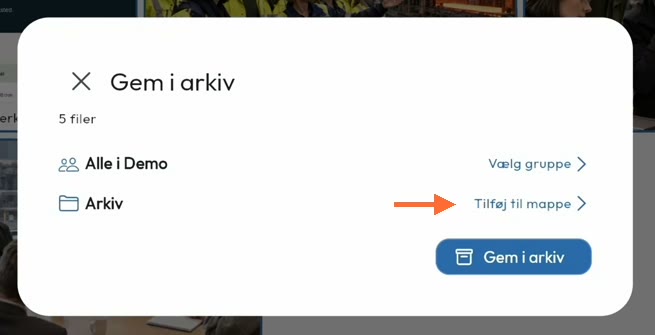
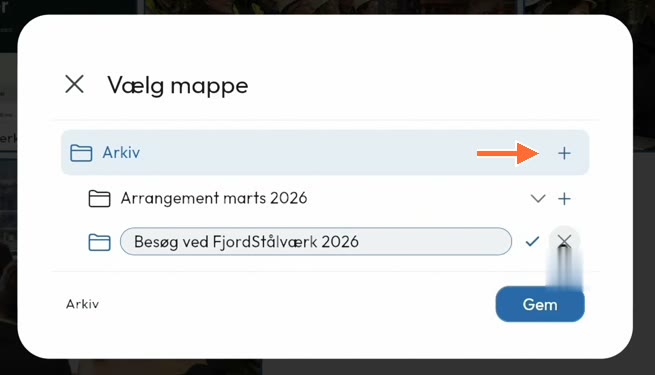
Click Tilføj til mappe (Add to folder). Choose an existing folder or click + next to the folder where you want to create a subfolder. In the example, I click + next to Arkiv (Archive) and create Besøg ved FjordStålværk 2026. Confirm the name with the checkmark, select the folder and click Gem (Save). Then click Gem i arkiv (Save to archive) in the first dialog.
4. Find the material in the archive
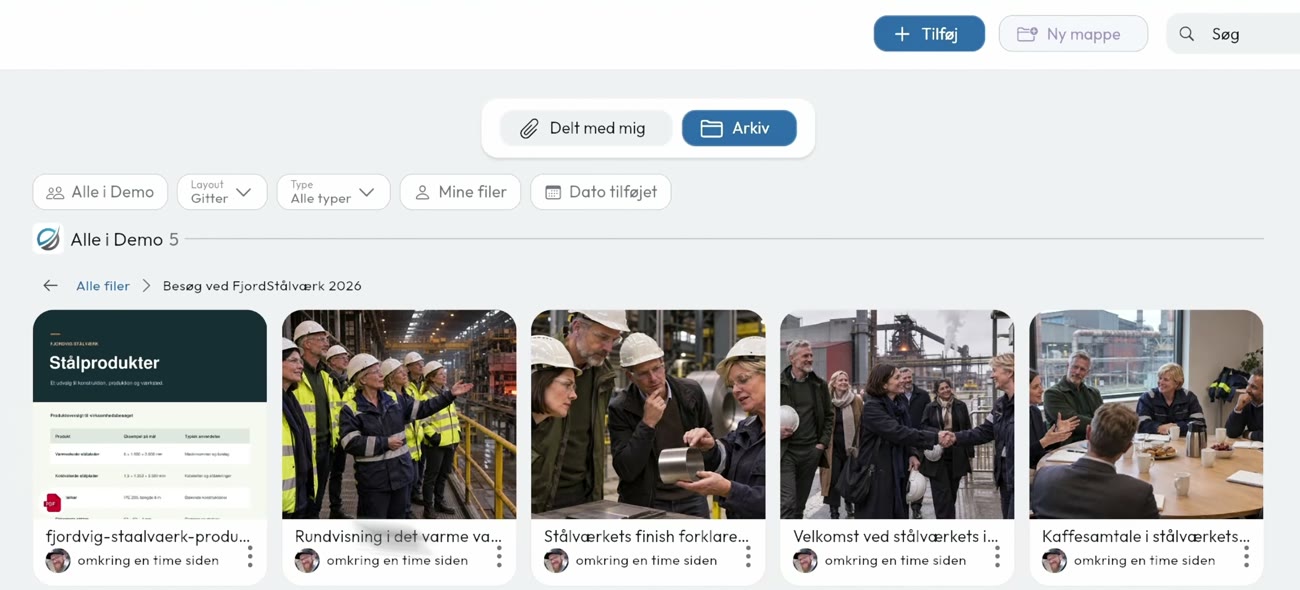
Switch to Arkiv (Archive), choose the shared or group archive and open the folder. The PDF and photos are now together. Members can still find the shared files in their Delt med mig (Shared with me) timeline.
5. Select files on mobile
Open Filer (Files) → Delt med mig (Shared with me) and tap the blue checkmark button in the bottom-right corner. Checkboxes appear on the files. Select the files, tap Gem i arkiv (Save to archive) and choose the archive and folder as you would on a computer.