Make it easier for your members to find images/videos/documents you have shared with them by using folders.
Getting started with folders
Each group also has its own document archive. You can upload documents directly here, but you can also create posts and attach documents to them. When you attach documents to a post, they are automatically added to the group’s document archive.
Add documents
- Go to Documents in your group
- Click Add.

- Tap the plus icon in the top left corner and select the documents from your computer/phone that you want to add.
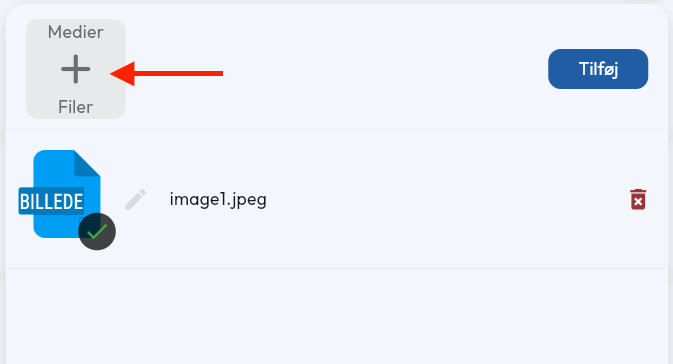
- Tap Add to confirm.
- The documents are now available to the entire group.
Note that members are not notified when you upload documents for sharing, so consider writing a post to let them know.
Add folders
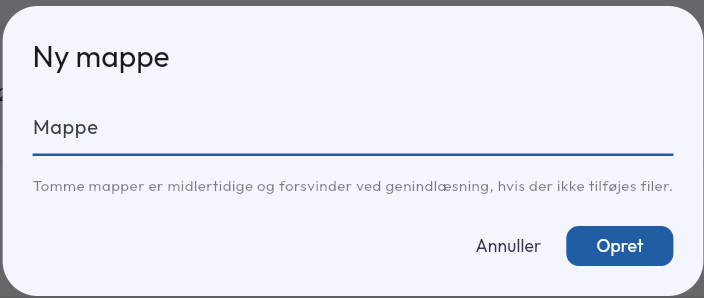
- Under Documents, next to the Add button, there is a new folder icon
- Give the new folder a name
- You can drag documents into the new folder
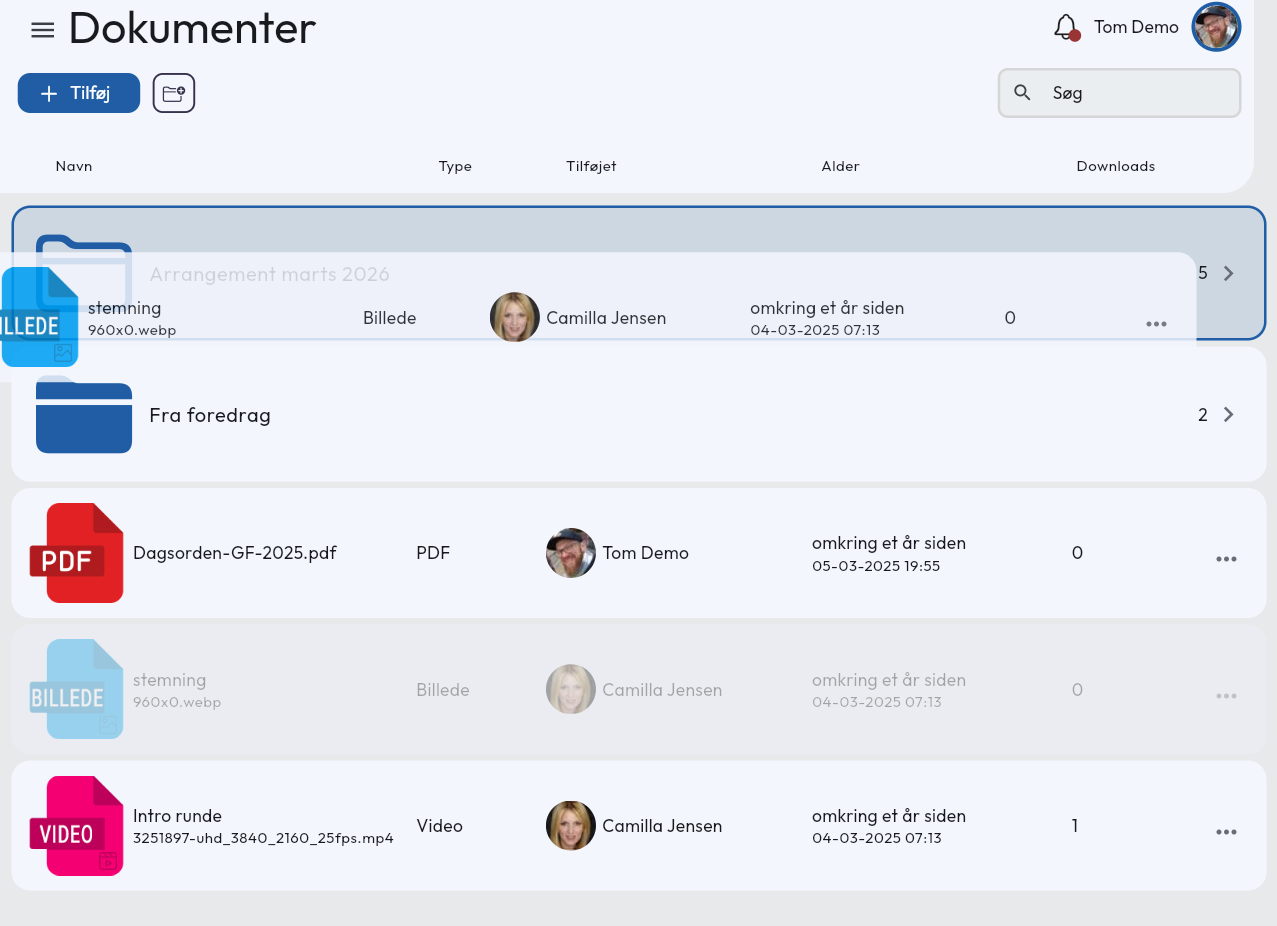
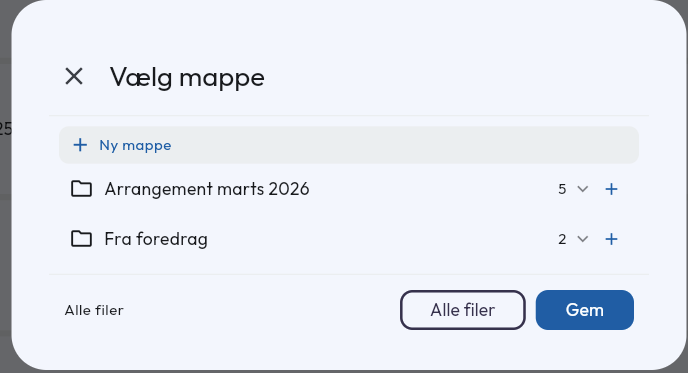
Or use the 3 … next to the document and select Move to folder
You can also choose to create a new folder from here.
Questions about folders? Contact us — we’re happy to help!