A shared meeting lets you bring members from several groups together in the same event. The meeting is visible across the organization, while you decide who should be invited.
1. Open Events
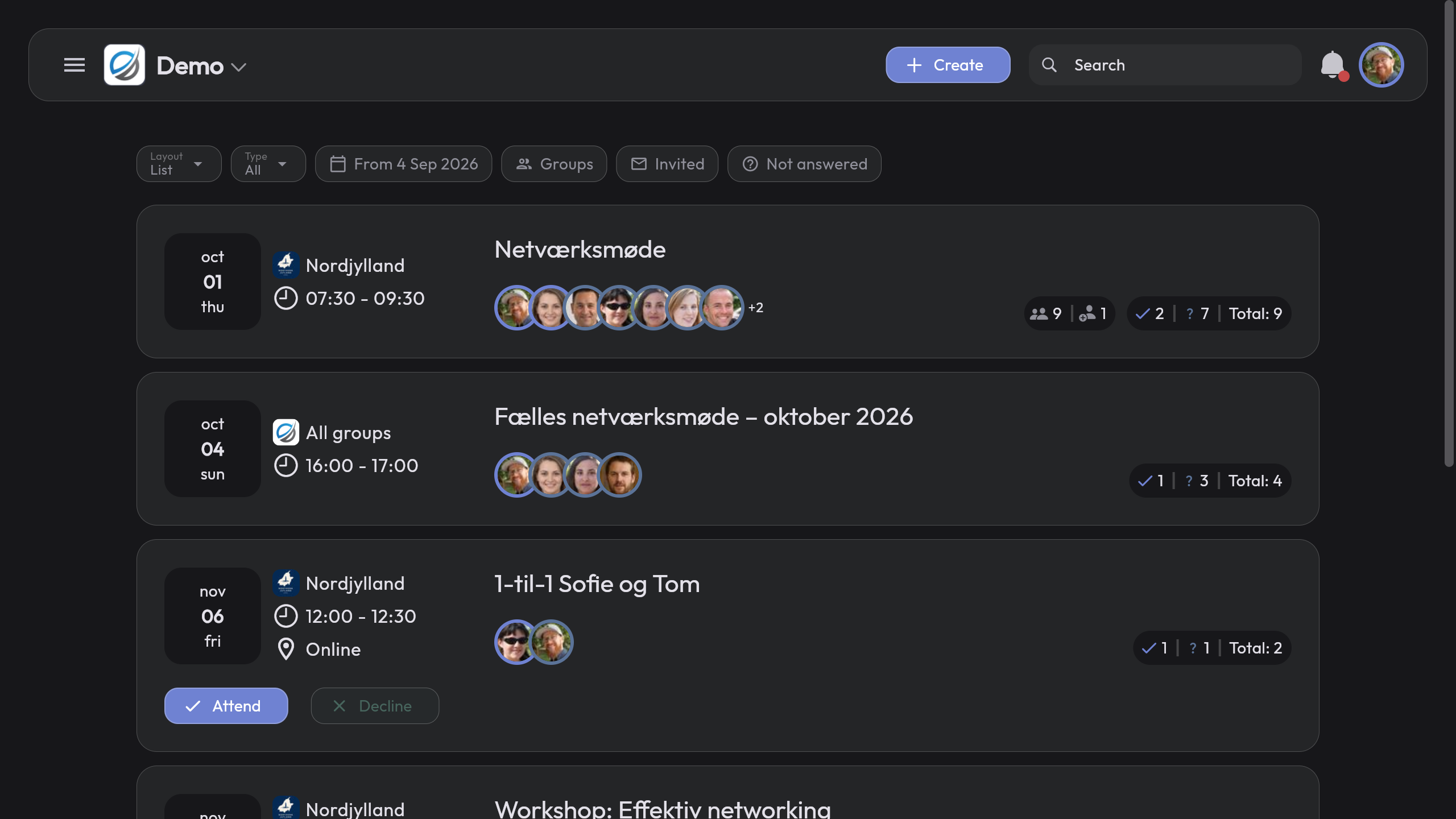
Open the main menu and select Events. The event overview shows the organization’s upcoming meetings.
Click Create at the top of the page.
2. Select Meeting
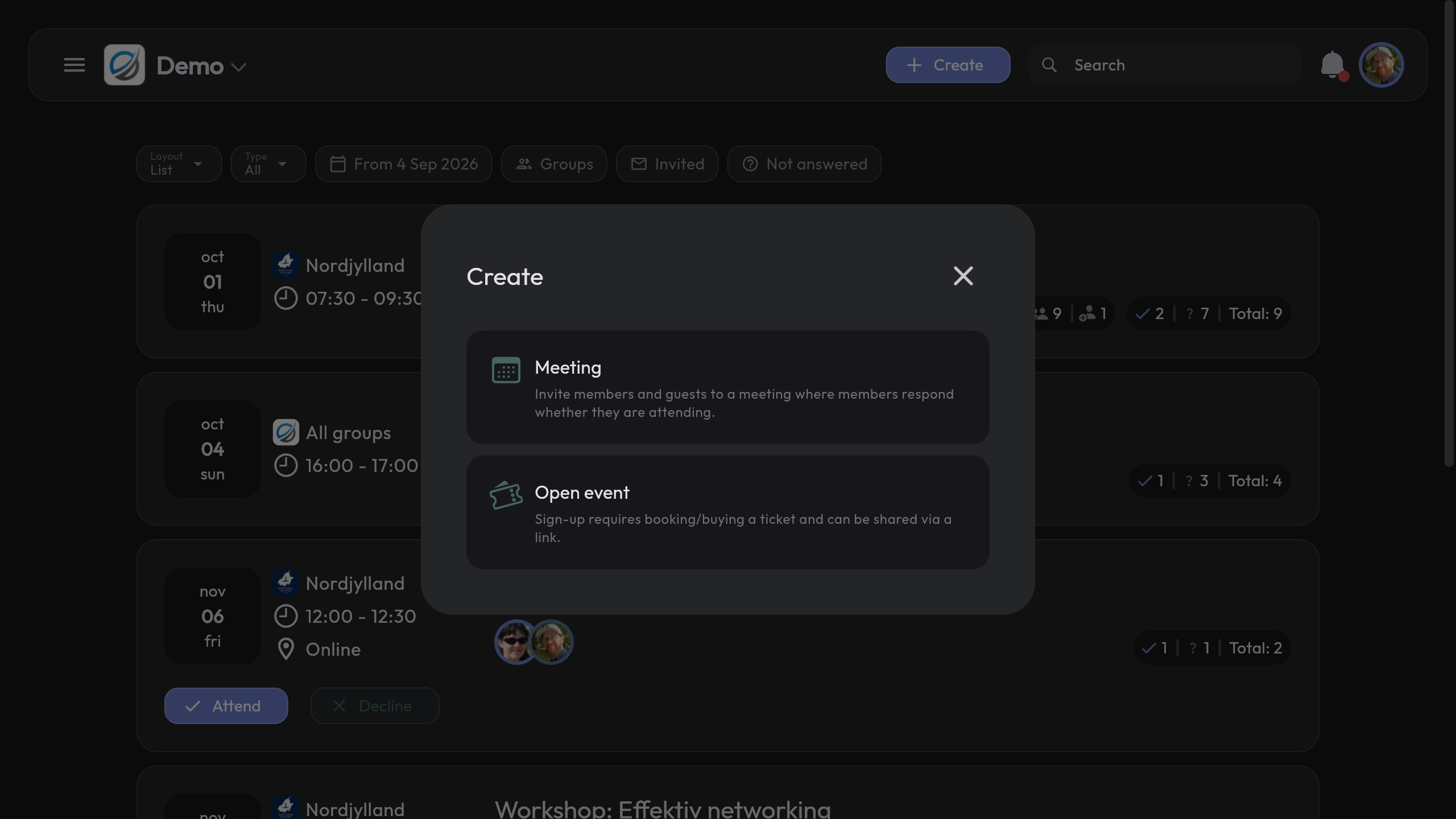
Select Meeting in the dialog. Meetings are events where invited participants can respond whether they are attending.
3. Select all groups
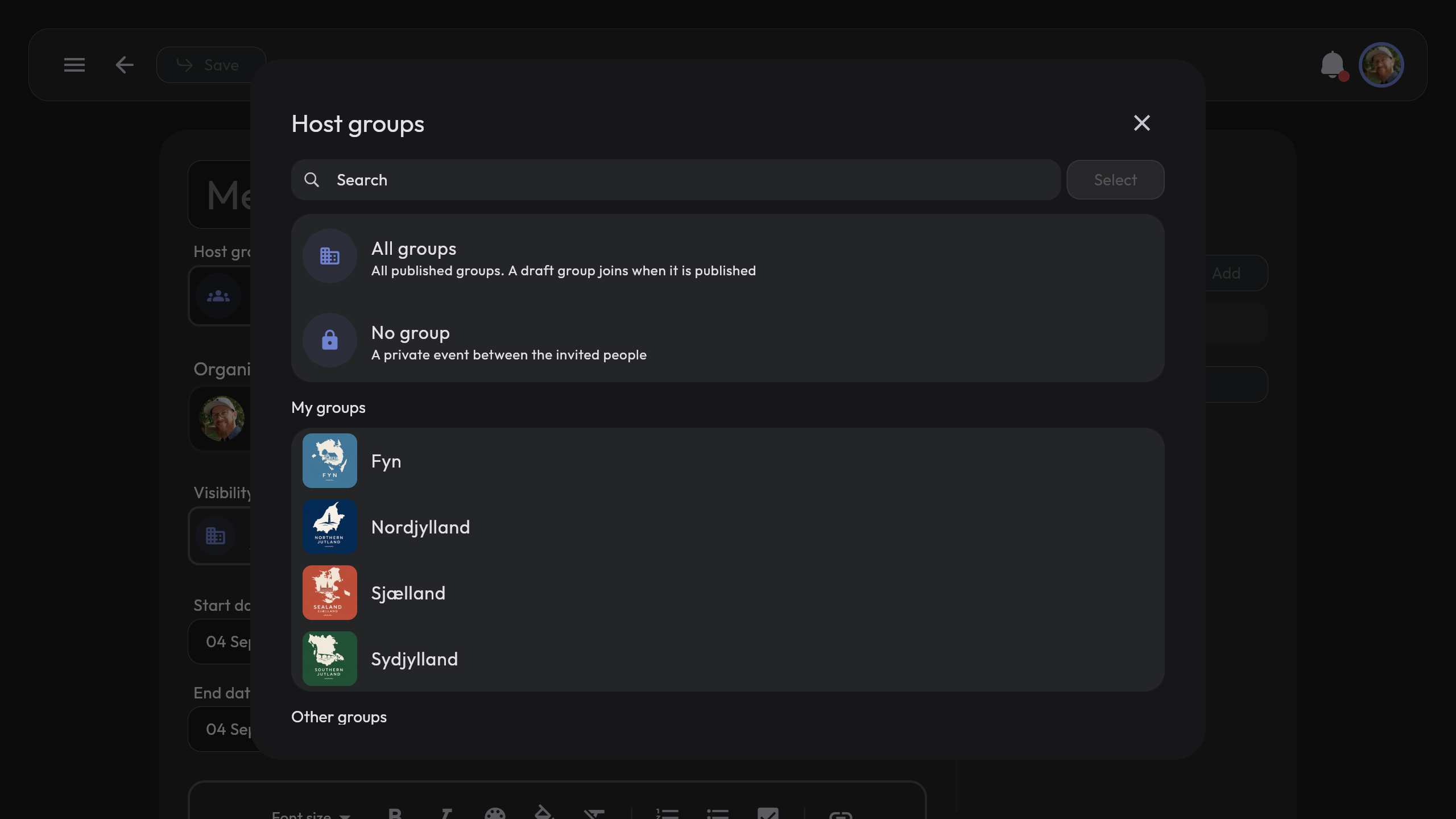
Under Host groups, select All groups. This makes the meeting visible to all published groups in the organization.
4. Add the meeting details
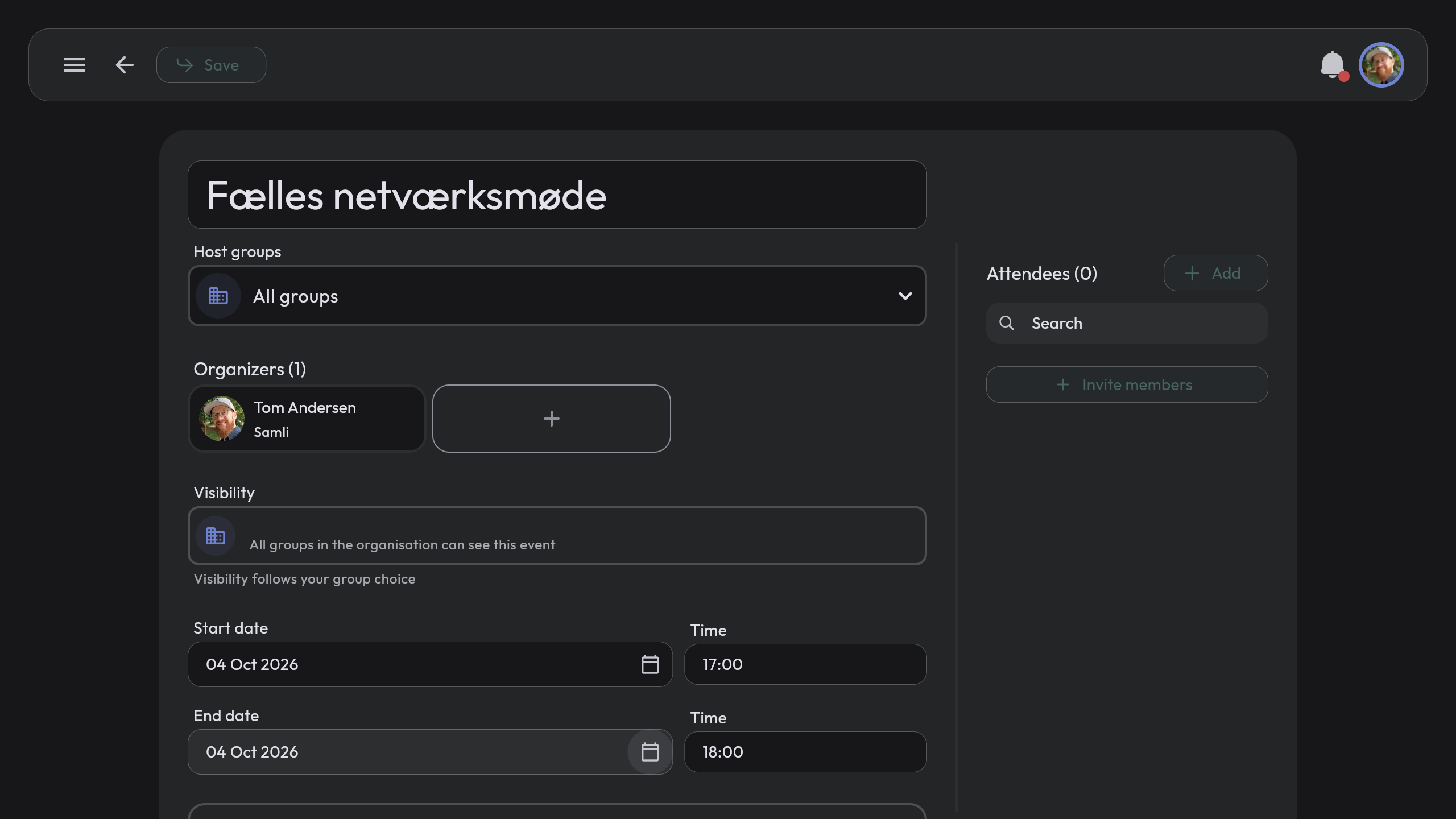
Enter a clear title, then select the start date, end date and time. Check that All groups is shown as the host group.
5. Invite members
Click Invite members on the right.
- Open the group you want to invite from.
- Click the member you want to include.
- Repeat for members from other groups.
- Click Add when all participants have been selected.
The selected people appear under Attendees. Review the title, groups, date and participants, then click Save to create the meeting.
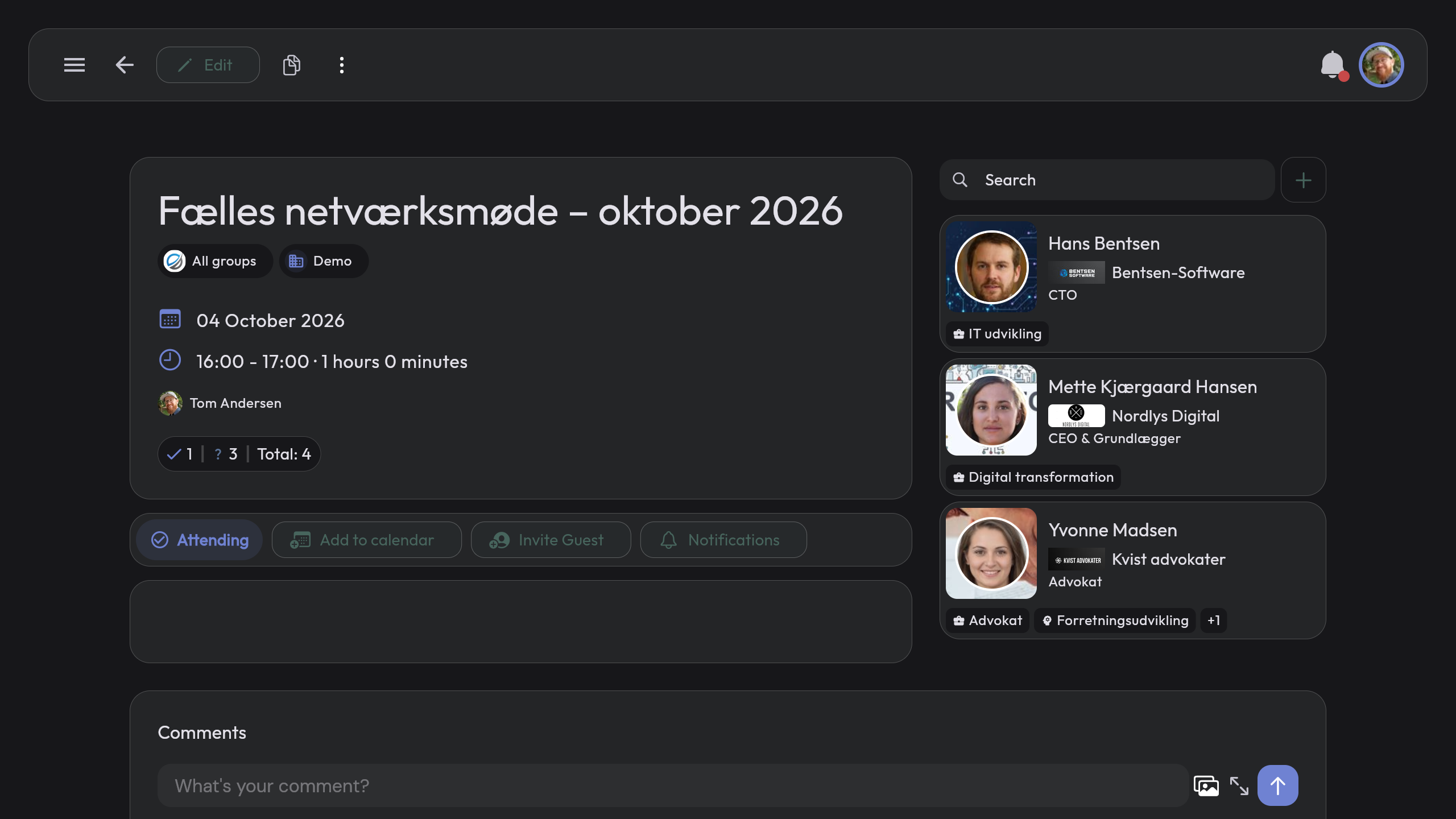
The completed meeting
Once the meeting has been created, the meeting page shows its details and invited participants. Participants can then respond whether they are attending.
Have questions about meetings in Samli? Contact us — we’re happy to help!