Member tags allow you to categorise and filter your group members. This makes it easier for your members to search for other members and gain a deeper insight into them.
What are member tags?
At their core, member tags let you categorise members by assigning labels to them. You can also choose whether members are allowed to select which labels appear on their own profiles.
An example of categorisation could be “Industry”, where members are grouped into e.g. Accounting, Logistics, Marketing, Strategic Management, etc.
Create a new tag category
- Go to Administration, then Organisation and Member tags
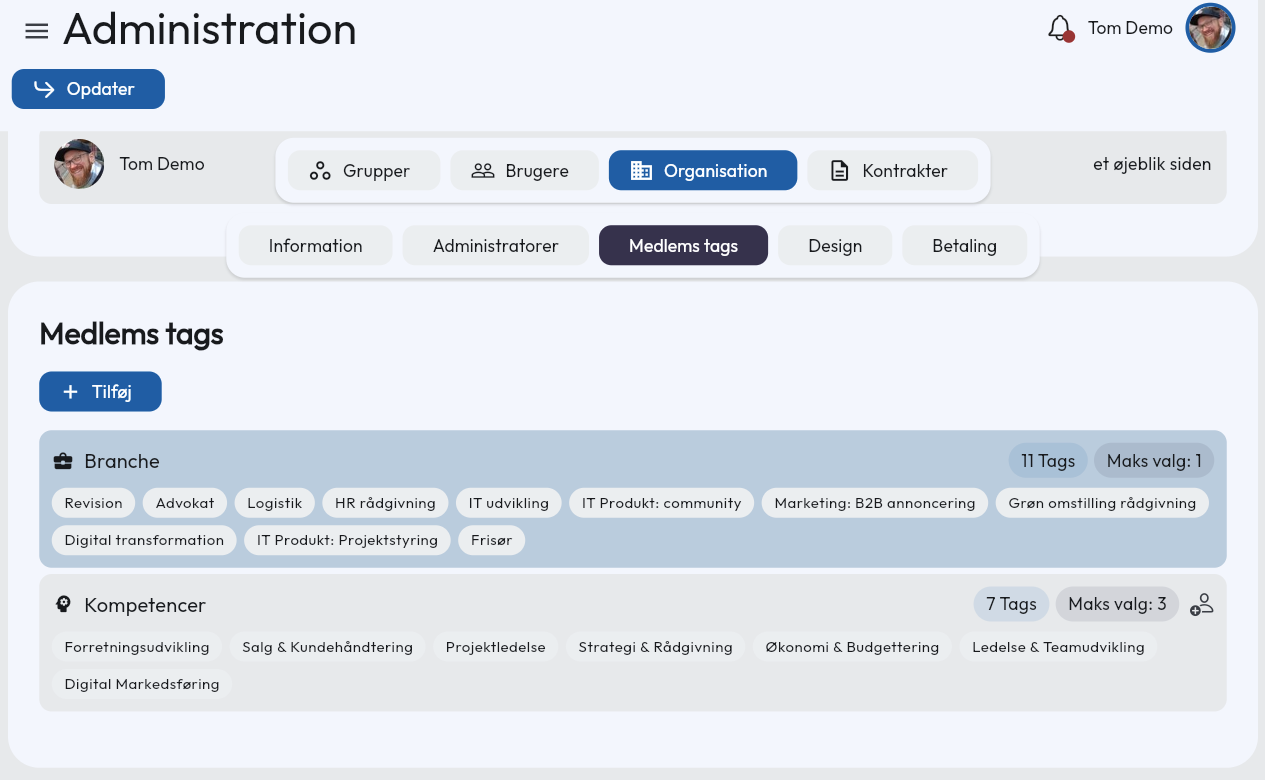
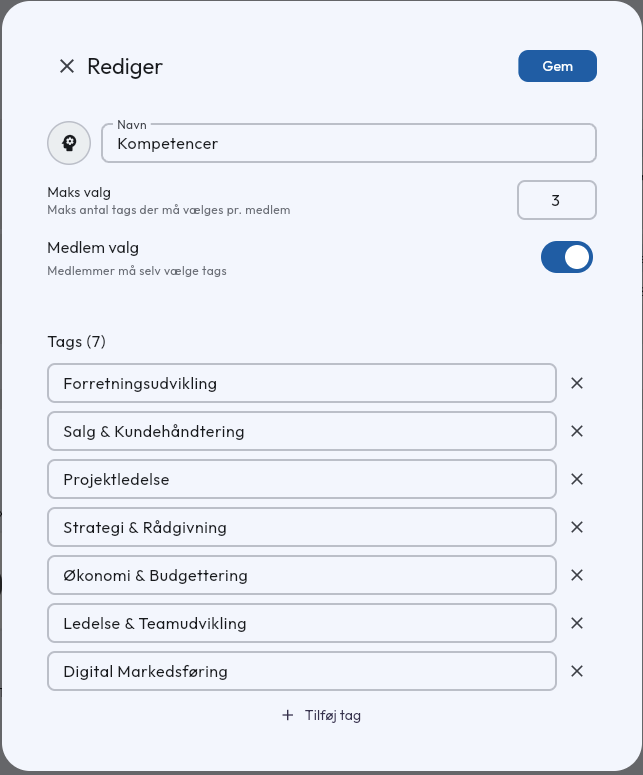
- Give the category a name and choose an icon.
Max selection — Determines how many tags from this category a single member may have.
Member selection — Are members allowed to choose their own tags from this category?
Then add all the available options. You can always add more later.
Add tags to members
- Go to Administration and then Users
- Select the member you want to add tags to.
- The tag category is now available above the member’s profile information. Click Select.
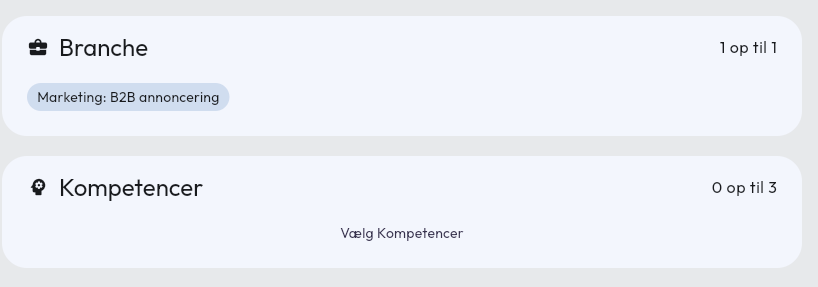
If you have allowed members to choose their own tags, they can add tags via their own profile settings.
Use tags for sorting and filtering in the member list
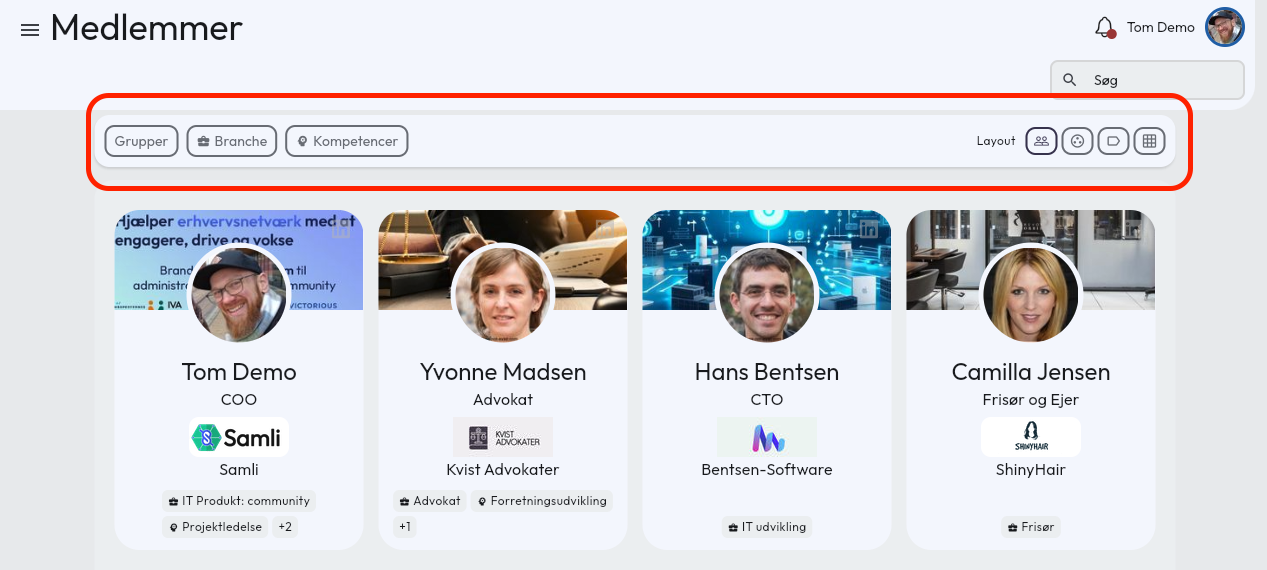
As soon as the first tag is assigned to a member, tags become available in the member list. You can now filter by tag, and you can also sort the list based on tags.
Filters work together and across categories, making it possible to narrow down to exactly the members you want — once tags have been assigned to all members.
Overview of tags across multiple groups
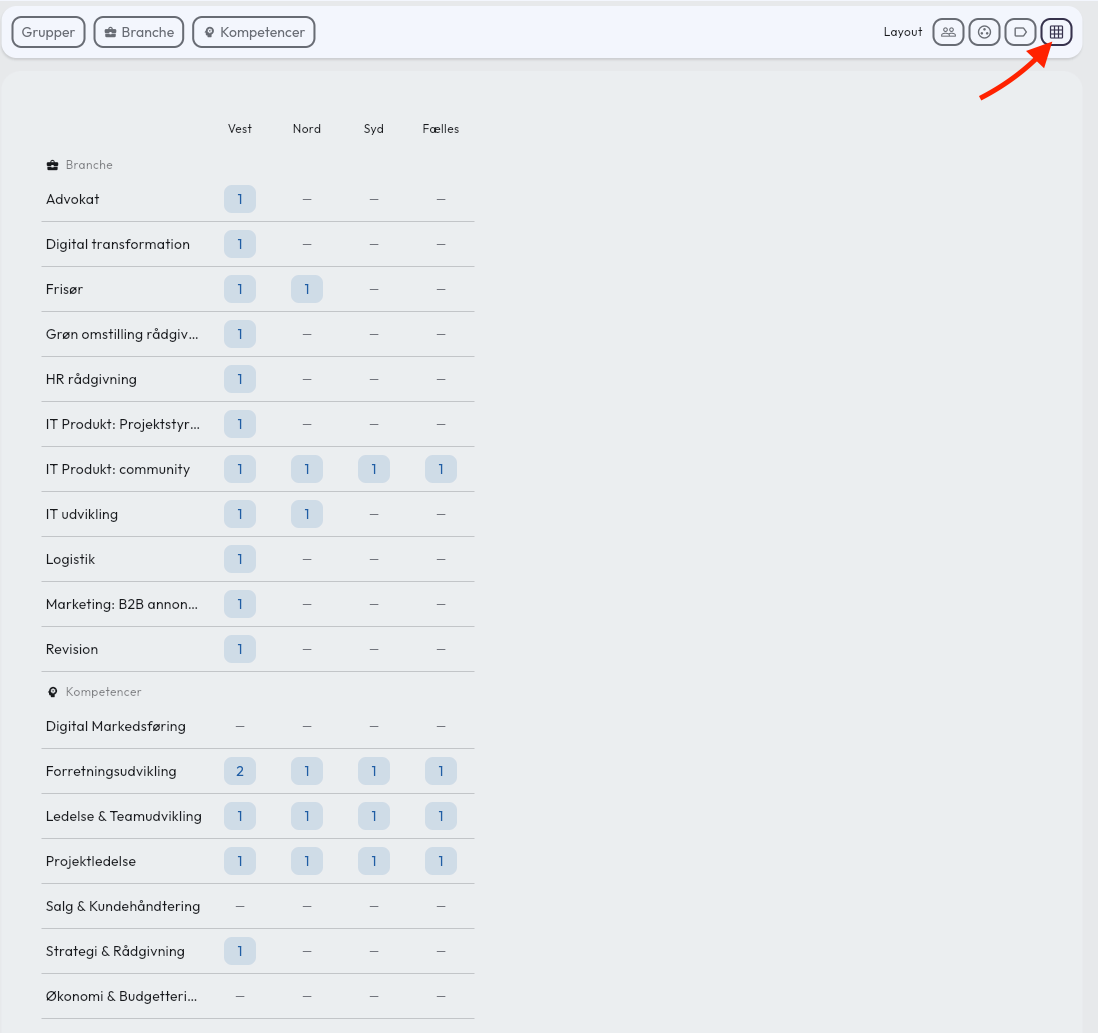
If you have industry exclusivity, you can easily get an overview of which industries are in which groups by using the Matrix view. This also makes it easy for members to see which industries are available when they bring guests to meetings.
Questions about tags? Contact us — we’re happy to help!